
|
Welcome to Angleton Self Storage!Safe, Convenient, and Trusted Storage Solutions – Serving Angleton with Excellence! |
|
|
Welcome to Angleton Self Storage!Safe, Convenient, and Trusted Storage Solutions – Serving Angleton with Excellence! |
Store your belongings with peace of mind.


No current specials available.
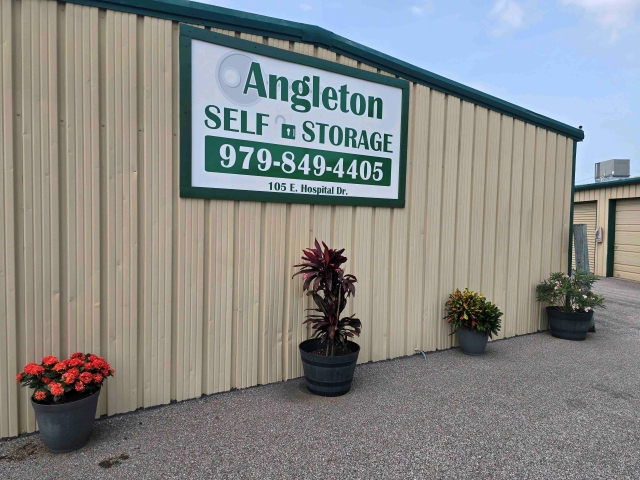
Welcome to Angleton Self Storage, located in the beautiful town of Angleton, Texas. Although our property is small, we take pride in providing our customers with top-notch amenities and services. We have recently made significant upgrades to our property, including new asphalt and a gate that is operated by our friendly staff. Our commitment to customer satisfaction is our top priority, and we strive to provide a secure and convenient storage experience for our customers. Thank you for considering Angleton Self Storage for your storage needs in this charming community.
O Admin Fee: $17.76
O 24-7 Access
O Boat / RV Storage
O Drive Up
O On-Site Manager
O No Cash
O Emailed Invoices
O Credit Cards Accepted
O First Of Month Billing
O Autopay Available
At Angleton Self Storage in Angleton, we take pride in offering top-notch self-storage solutions with advanced security features like surveillance cameras, perimeter fencing, and gated access. Whether you're managing a business, moving to a new home, or just need extra space for your belongings, we’re here to meet your needs with convenience and peace of mind.
If you're searching for budget-friendly storage units in Angleton, look no further than Angleton Self Storage! Conveniently located at 105 E Hospital Dr., we offer the perfect self-storage solution at unbeatable prices. Whether you need space for personal items, business inventory, or anything in between, our facility provides a variety of unit sizes to fit your needs—all at competitive rates. Take advantage of our secure, cost-effective storage options and enjoy peace of mind knowing your belongings are in good hands. Reserve your unit today and experience the best value in self-storage right here in Angleton!



Author: Justin Small | Published On: May 02, 2023
Self-storage facilities have become increasingly popular in recent years, as people look for secure and convenient places to store their belongings. However, to ensure that these facilities continue to operate smoothly and provide high-quality service, it is essential to implement an effective maintenance program. In this article, we will discuss some of the best practices for implementing an effective maintenance program for a self-storage facility.
1. Conduct Regular Inspections
Regular inspections are essential to ensure that the facility is in good condition and to identify any maintenance issues that need to be addressed. These inspections should cover all areas of the facility, including the storage units, the common areas, and the parking lot. It is important to identify any problems early so that they can be fixed before they become more serious and costly.
2. Develop a Preventive Maintenance Plan
A preventive maintenance plan is a schedule of regular maintenance tasks that are performed to prevent equipment breakdowns and ensure that the facility is in good condition. This plan should include tasks such as cleaning and lubricating equipment, replacing filters, and inspecting for signs of wear and tear. By implementing a preventive maintenance plan, you can reduce the likelihood of unexpected downtime and prolong the lifespan of your equipment.
3. Train Staff on Maintenance Procedures
It is important to train your staff on the proper maintenance procedures so that they can identify and address maintenance issues promptly. Your staff should know how to operate the equipment and be familiar with the preventive maintenance plan. They should also be trained to identify potential hazards and safety issues and take appropriate action to prevent accidents.
4. Keep Detailed Records
Keeping detailed records of all maintenance activities is essential to track the facility's condition, monitor performance, and plan future maintenance tasks. These records should include inspection reports, maintenance schedules, repair logs, and equipment manuals. By keeping accurate records, you can track the maintenance history of your facility and identify areas for improvement.
5. Partner with Reliable Vendors
Partnering with reliable vendors is essential to ensure that your maintenance tasks are performed correctly and on time. You should work with vendors who have experience working with self-storage facilities and have a good reputation for quality service. You should also establish clear expectations for the scope of work, deadlines, and pricing to avoid any misunderstandings.
Conclusion
An effective maintenance program is essential to ensure that your self-storage facility operates smoothly and provides high-quality service to your customers. By implementing these best practices, you can reduce the likelihood of equipment breakdowns, improve safety, and prolong the lifespan of your facility. Regular inspections, a preventive maintenance plan, staff training, detailed records, and partnering with reliable vendors are all key components of an effective maintenance program. By prioritizing maintenance, you can create a safe and secure environment for your customers and increase the longevity of your business.
For general inquiries, email us at: management@diamondselfstorage.net
or call: (281) 617-0550
For Cyber Security inquiries, email: cybersecurity@diamondselfstorage.net or call: (281) 617-0550 Ext 100